
There may be a lot of problems for users of Acer when migrating to Windows 7, but if you look at almost all the drivers inbuilt in Windows 7 can handle drivers for most devices except for devices such as Web Camera. As in the previous article entitled How to Fix Webcam Acer Crystal Eye 4530 Problem/Trouble. That the problem occurred due to the driver, but not on the device.
Today, we face the same problem when trying to upgrade Acer Aspire PC to Windows 7 from XP. Meanwhile, all the other drivers will work with the default and some drivers like the Intel Graphics Accelerator, Ethernet drivers can be seen in Windows Update as an optional list that can be downloaded and installed automatically. The only problem I faced was with the drivers Acer Crystal Eye Web Camera. I almost tried all available drivers but does not work. Most forums provide a solution to use the driver Suyin Cam NB:
This one might work but it's not a perfect solution.
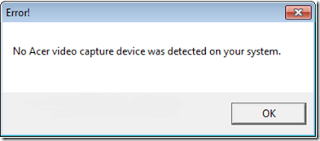
Most of the drivers and applications available gives the same error, which arises:
Download the driver from the link below. Install and restart the system. Having successfully performed, Acer Crystal Eye webcam started to work normally. No other drivers are needed.


We have tried these drivers on Acer Aspire 5570Z and Aspire 4925G, and all succeeded. I hope this will work for other types as well. May be useful.
Download:
File: Acer_Camera_Suyin_v.5.2.5.3_Win7x86x64.zip
File Size: 3.29 MB
Today, we face the same problem when trying to upgrade Acer Aspire PC to Windows 7 from XP. Meanwhile, all the other drivers will work with the default and some drivers like the Intel Graphics Accelerator, Ethernet drivers can be seen in Windows Update as an optional list that can be downloaded and installed automatically. The only problem I faced was with the drivers Acer Crystal Eye Web Camera. I almost tried all available drivers but does not work. Most forums provide a solution to use the driver Suyin Cam NB:
C:\\Windows\\SUYIN NB Cam\\LiveCam.exe
This one might work but it's not a perfect solution.
Most of the drivers and applications available gives the same error, which arises:
"No Acer video capture device was detected on your system"

Driver Acer Crystal Eye Web Camera For Windows 7
After much trial and error I finally have found the perfect solution to this problem. I have drivers for Acer Suyin v.5.2.5.3 webcam made for Windows 7 After the install, I restarted the computer and the system works well.Download the driver from the link below. Install and restart the system. Having successfully performed, Acer Crystal Eye webcam started to work normally. No other drivers are needed.


We have tried these drivers on Acer Aspire 5570Z and Aspire 4925G, and all succeeded. I hope this will work for other types as well. May be useful.
Download:
File: Acer_Camera_Suyin_v.5.2.5.3_Win7x86x64.zip
File Size: 3.29 MB
 By:
By:


