
Laptop Gaming Murah Asus ROG G751 - Asus ROG G751 bukan laptop yang baik, tapi G751 adalah laptop gaming murah terbaik. Hal ini, pada kenyataannya, gaming laptop tunggal terbaik yang pernah saya buat ulasan. Jika Anda berada di pasar untuk sistem jenis ini, kami berharap Anda membaca dulu review ini. Mesin ini didukung oleh yang terbaik, yaitu Maxwell berbasis GeForce GTX 980M NVIDIA, tapi Asus layak mendapatkan sejumlah besar kredit poin untuk desain dan pilihan konstruksi G751 ini.
Laptop gaming baru andalan ASUS ini adalah segala sesuatu yang Anda inginkan dalam sebuah laptop gaming besar. Asus ROG G751 sangat kuat dan powerful, dirancang dengan baik dan dengan teknologi grafis terbaru dan terbesar. Laptop gaming Asus ROG G751 tersedia dalam 5 tipe, antara lain: Asus ROG G751JY G‑SYNC, Asus ROG G751JT G‑SYNC, Asus ROG G751JY, Asus ROG G751JT, dan Asus ROG G751JL.
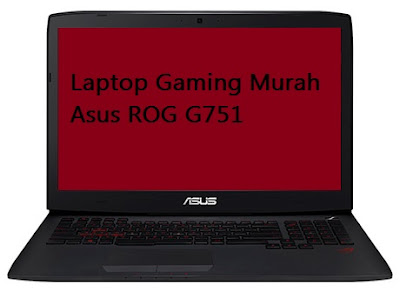
Anda melihat bahwa NVIDIA mengeluarkan desain GPU terbaru dan Anda bertanya-tanya apakah Anda harus memutuskan membuat pensiun laptop gaming lama Anda untuk sesuatu dengan sedikit lebih semangat. Setiap kali NVIDIA melakukan downsizes GPU andalannya untuk notebook, produsen membanjiri pasar dengan laptop baru dan lebih menjanjikan untuk memberikan pendapatan lebih dibanding gaming desktop. Ungkapan "desktop-class". Akankah Maxwell berbasis GPU 980M tahun ini memiliki tarif lebih baik? Mari kita cari tahu mengenai laptop gaming murah ASUS ROG G751 G Series.
Asus ROG G751 menggunakan teknologi display NVIDIA® G-SYNC . Dengan sinkronisasi refresh rate layar ke GPU, G-SYNC menghilangkan masalah piksel bergaris dan meminimalkan kondisi display lemot dan lag untuk memberikan pengalaman gaming terbaik. Display terlihat lebih tajam dan gameplay sangat lembut dan responsif untuk memberikan keunggulan kompetitif yang serius.
Mainkan game terberat yang paling kamu sukai dalam kualitas terbaik karena layar 17,3 inci Full HD IPS wide-viewing angle matte dengan fitur lengkap. Khusus dibuat untuk game di ruangan gelap dan terang, layar matte menghilangkan silau mengganggu pada saat memainkan game FPS yang memerlukan presisi membidik dengan tepat.
Laptop gaming murah Asus ROG G751 menggunakan salah satu GPU yang paling kuat, yaitu chip grafis NVIDIA® GeForce® dan mengambil satu langkah lebih lanjut dengan real-time overclocking ketika Anda ingin mengambil kinerja ke tingkat berikutnya. Jadi, ketika aksi semakin berat, Anda mendapatkan tambahan kekuatan ekstra untuk menangani semua itu dengan mudah.
Beberapa laptop game biasanya mengoptimalkan pada bagian visual, tetapi audio adalah masalah lain - saya temui begitu banyak laptop dengan speaker di bawah standar. Ketika saya tidak bisa menemukan bukti nyata dari speaker ROG, saya khawatir audio kurang memuaskan. Tapi itu bukan hal yang buruk. Sementara speaker stereo yang jernih dan cukup keras untuk mengisi sebuah ruangan kecil, mereka juga sedikit nyaring, dan bahkan dapat terdengar teredam jika program equalizer PC MaxxAudio dicentang untuk pengaturan yang salah. Audionya cukup lumayan, tetapi mereka tidak dapat bersaing dengan headset gaming Anda.
Saya akhirnya menemukan speaker Asus ROG G751, dengan cara: Mereka bersembunyi di kedua sisi bagian yang mengait layar, tampak tertutup oleh layar laptop itu sendiri. Menurut saya aneh pada awalnya, saya segera menyadari itu tip lain untuk desain hebat pada Asus ROG G751. Dengan bersandar speaker terhadap langkan tersembunyi ini, ASUS mampu mengarahkan mereka secara langsung pada pengguna laptop. Kebanyakan speaker laptop terpasang menghadap ke atas atau kebawah, tapi saya menemukan konfigurasi horisontal ini menjadi perubahan yang menyenangkan.
Asus ROG G751 memiliki desain pendingin pasif dan aktif menggunakan 3 pipa heating, sistem ventilasi aliran udara belakang dan didedikasikan bagi penggemar CPU / GPU untuk memastikan sistem anda selalu berjalan dingin bahkan ketika overclocking. Asus ROG G751 memiliki dual cooler fan dengan heat sink tembaga untuk menjaga suhu tetap rendah dan performance yang stabil.
Keyboard Asus ROG G751 sekilas tidak terlihat seperti kebanyakan keyboard pada umumnya, tetapi coba luangkan sedikit waktu untuk memperhatikannya dan Anda akan menemukan itu penuh dengan tweak halus yang dirancang khusus untuk gamer PC. Sebagian besar memiliki lapisan tambahan warna merah berada di sekitar tepi tombol W, A, S dan D. Selain itu terdapat "benjolan" pada tombol W untuk membantu pemain menemukan tombol tanpa melihat ke keyboard. Ada beberapa tombol khusus, termasuk tiga tombol makro yang bisa diprogram (berlabel m1, m2 dan m3) dan tombol khusus untuk meluncurkan NVIDIA GeForce Experience, Steam dan menu "game center" ASUS sendiri.
Tombol Steam khusus memungkinkan Anda dengan cepat membuka aplikasi Steam untuk mengakses dan bermain dari game library Anda. Ketika terhubung ke layar eksternal melalui HDMI, tombol Steam membuatnya lebih mudah untuk memulai mode layar besar Steam. Dengan tombol Macro, kombinasi rumit atau pengaturan yang memakan waktu lama menjadi lebih efisien dengan hanya menekan sebuah tombol khusus.
Mengukur daya tahan baterai di laptop gaming yang berkinerja tinggi membutuhkan jenis perspektif yang sangat khusus. Dengan beberapa pengecualian, mesin ini jarang bertahan lebih dari empat jam, bahkan dalam skenario terbaik. G751 adalah hanya rata-rata dalam hal ini habis dalam tiga jam lebih 40 menit. Secara obyektif ini hampir berjalan baik untuk laptop dengan spesifikasi laptop gaming, tetapi ketika Anda mempertimbangkan kenyataan bahwa MSI 2013 GT70 Dragon Edition dan dua laptop Razer Blade terbaru dapat menyala hampir satu jam lebih lama. Tapi untung saja laptop gaming Asus ROG G751 menggunakan GPU NVIDIA GeForce, dimana terdapat fitur Battery Boost.
Nvidia Battery Boost adalah teknologi mode khusus yang membatasi frame rate permainan dan tingkat tegangan untuk memperpanjang hidup baterai. Pengujian yang sama, dengan permainan yang sama, dikonfigurasi untuk pengaturan grafis yang sama dengan Battery Boost dinonaktifkan? Hanya memiliki perbedaan waktu hidup baterai 59 menit. Itu bukan lompatan besar, tapi setidaknya itu kemajuan.
Teknologi overclocking GPU ASUS TurboMaster memberikan peningkatan kinerja 5%. Tersedia 4 slot SO-DIMM RAM yang dapat diupgrade hingga 32GB. Tombol untuk akses cepat permainan dan tambahan tombol makro yang bsia diprogram untuk memudahkan akses ke Steam, merekam game yang dimainkan dan perintah lain yang sering digunakan. Asus ROG G751 ini dilengkapi dengan port Thunderbolt untuk kecepatan transfer hingga 10 Gbps. Memberikan Anda kemudahan mentransfer film berkualitas DVD penuh dalam detik.
Game Center dapat diluncurkan melalui tombol atau perangkat lunak aplikasi khusus untuk membuat profil kustom Anda sendiri (seperti memungkinkan opsi overclock GPU), jadi apakah ada banyak pengguna untuk satu laptop atau pilihan pengaturan diantara permainan, Anda dapat langsung beralih di antara mereka semua dengan cepat dan mudah.
Alih-alih mencoba untuk memengkas ukuran chassis beberapa milimeter, Asus memilih untuk memaksimalkan konfigurasi ventilasi yang menjamin komponen internal dapat tetap dingin, bahkan di bawah beban berat. Asus ROG G751 mempunyai dua port USB 3.0, pemutar Blu-ray, Next-gen 802.11ac wireless dan card reader 2in1 yang terlihat di tepi luar sistem. Panel monitor diperkuat dengan clamshell besar yang membuat seluruh panel atas stabil. Asus ROG G751 didukung layar display 17.3" FHD (1920 x 1080) IPS Matte.
Laptop gaming ini tidak terdengar berisik. Bahkan setelah dijalankan untuk sesi maraton game, Anda masih dapat menggunakan sistem ini ke dalam pangkuan Anda dan memainkan permainan di atasnya.
Sebagian besar port penting berada di sisi kanan. Pada sisi kiri, terdapat SPDIF, audio / headphone out, dan mikrofon in. Kemudian sepasang port USB 3.0, DisplayPort / port Thunderbolt, HDMI 1.4, gigabit Ethernet, dan port VGA 15-pin.
Bagian bawah atau dasar dari laptop dirancang dengan baik juga, dengan outflow udara sederhana (sebagian besar udara diarahkan keluar dari belakang). Anda dapat melihat bagian bawah sedikit melengkung. Asus membuat laptop lebih dalam daripada yang pertama kali muncul untuk meningkatkan aliran udara dan memastikan pendinginan yang memadai. Dalam prakteknya ini berarti sistem duduk sedikit lebih tinggi dari biasanya, tetapi itu adalah pergeseran sambutan dari desain output suara lainnya.
Demikian ulasan singkat mengenai Laptop Gaming Murah Asus ROG G751. Untuk mendapatkan artikel review laptop atau notebook gaming terbaru lainnya tetap kunjungi SettingComputers.blogspot.com.
Laptop gaming baru andalan ASUS ini adalah segala sesuatu yang Anda inginkan dalam sebuah laptop gaming besar. Asus ROG G751 sangat kuat dan powerful, dirancang dengan baik dan dengan teknologi grafis terbaru dan terbesar. Laptop gaming Asus ROG G751 tersedia dalam 5 tipe, antara lain: Asus ROG G751JY G‑SYNC, Asus ROG G751JT G‑SYNC, Asus ROG G751JY, Asus ROG G751JT, dan Asus ROG G751JL.

Anda melihat bahwa NVIDIA mengeluarkan desain GPU terbaru dan Anda bertanya-tanya apakah Anda harus memutuskan membuat pensiun laptop gaming lama Anda untuk sesuatu dengan sedikit lebih semangat. Setiap kali NVIDIA melakukan downsizes GPU andalannya untuk notebook, produsen membanjiri pasar dengan laptop baru dan lebih menjanjikan untuk memberikan pendapatan lebih dibanding gaming desktop. Ungkapan "desktop-class". Akankah Maxwell berbasis GPU 980M tahun ini memiliki tarif lebih baik? Mari kita cari tahu mengenai laptop gaming murah ASUS ROG G751 G Series.
Display Asus ROG G751
Asus ROG G751 menggunakan teknologi display NVIDIA® G-SYNC . Dengan sinkronisasi refresh rate layar ke GPU, G-SYNC menghilangkan masalah piksel bergaris dan meminimalkan kondisi display lemot dan lag untuk memberikan pengalaman gaming terbaik. Display terlihat lebih tajam dan gameplay sangat lembut dan responsif untuk memberikan keunggulan kompetitif yang serius.
Mainkan game terberat yang paling kamu sukai dalam kualitas terbaik karena layar 17,3 inci Full HD IPS wide-viewing angle matte dengan fitur lengkap. Khusus dibuat untuk game di ruangan gelap dan terang, layar matte menghilangkan silau mengganggu pada saat memainkan game FPS yang memerlukan presisi membidik dengan tepat.
Laptop gaming murah Asus ROG G751 menggunakan salah satu GPU yang paling kuat, yaitu chip grafis NVIDIA® GeForce® dan mengambil satu langkah lebih lanjut dengan real-time overclocking ketika Anda ingin mengambil kinerja ke tingkat berikutnya. Jadi, ketika aksi semakin berat, Anda mendapatkan tambahan kekuatan ekstra untuk menangani semua itu dengan mudah.
Audio Asus ROG G751
Beberapa laptop game biasanya mengoptimalkan pada bagian visual, tetapi audio adalah masalah lain - saya temui begitu banyak laptop dengan speaker di bawah standar. Ketika saya tidak bisa menemukan bukti nyata dari speaker ROG, saya khawatir audio kurang memuaskan. Tapi itu bukan hal yang buruk. Sementara speaker stereo yang jernih dan cukup keras untuk mengisi sebuah ruangan kecil, mereka juga sedikit nyaring, dan bahkan dapat terdengar teredam jika program equalizer PC MaxxAudio dicentang untuk pengaturan yang salah. Audionya cukup lumayan, tetapi mereka tidak dapat bersaing dengan headset gaming Anda.
Saya akhirnya menemukan speaker Asus ROG G751, dengan cara: Mereka bersembunyi di kedua sisi bagian yang mengait layar, tampak tertutup oleh layar laptop itu sendiri. Menurut saya aneh pada awalnya, saya segera menyadari itu tip lain untuk desain hebat pada Asus ROG G751. Dengan bersandar speaker terhadap langkan tersembunyi ini, ASUS mampu mengarahkan mereka secara langsung pada pengguna laptop. Kebanyakan speaker laptop terpasang menghadap ke atas atau kebawah, tapi saya menemukan konfigurasi horisontal ini menjadi perubahan yang menyenangkan.
Cooler Asus ROG G751
Asus ROG G751 memiliki desain pendingin pasif dan aktif menggunakan 3 pipa heating, sistem ventilasi aliran udara belakang dan didedikasikan bagi penggemar CPU / GPU untuk memastikan sistem anda selalu berjalan dingin bahkan ketika overclocking. Asus ROG G751 memiliki dual cooler fan dengan heat sink tembaga untuk menjaga suhu tetap rendah dan performance yang stabil.
Keyboard dan Trackpad Asus ROG G751
Keyboard Asus ROG G751 sekilas tidak terlihat seperti kebanyakan keyboard pada umumnya, tetapi coba luangkan sedikit waktu untuk memperhatikannya dan Anda akan menemukan itu penuh dengan tweak halus yang dirancang khusus untuk gamer PC. Sebagian besar memiliki lapisan tambahan warna merah berada di sekitar tepi tombol W, A, S dan D. Selain itu terdapat "benjolan" pada tombol W untuk membantu pemain menemukan tombol tanpa melihat ke keyboard. Ada beberapa tombol khusus, termasuk tiga tombol makro yang bisa diprogram (berlabel m1, m2 dan m3) dan tombol khusus untuk meluncurkan NVIDIA GeForce Experience, Steam dan menu "game center" ASUS sendiri.
Tombol Steam khusus memungkinkan Anda dengan cepat membuka aplikasi Steam untuk mengakses dan bermain dari game library Anda. Ketika terhubung ke layar eksternal melalui HDMI, tombol Steam membuatnya lebih mudah untuk memulai mode layar besar Steam. Dengan tombol Macro, kombinasi rumit atau pengaturan yang memakan waktu lama menjadi lebih efisien dengan hanya menekan sebuah tombol khusus.
Kinerja dan Daya Tahan Baterai Asus ROG G751
Mengukur daya tahan baterai di laptop gaming yang berkinerja tinggi membutuhkan jenis perspektif yang sangat khusus. Dengan beberapa pengecualian, mesin ini jarang bertahan lebih dari empat jam, bahkan dalam skenario terbaik. G751 adalah hanya rata-rata dalam hal ini habis dalam tiga jam lebih 40 menit. Secara obyektif ini hampir berjalan baik untuk laptop dengan spesifikasi laptop gaming, tetapi ketika Anda mempertimbangkan kenyataan bahwa MSI 2013 GT70 Dragon Edition dan dua laptop Razer Blade terbaru dapat menyala hampir satu jam lebih lama. Tapi untung saja laptop gaming Asus ROG G751 menggunakan GPU NVIDIA GeForce, dimana terdapat fitur Battery Boost.
Nvidia Battery Boost adalah teknologi mode khusus yang membatasi frame rate permainan dan tingkat tegangan untuk memperpanjang hidup baterai. Pengujian yang sama, dengan permainan yang sama, dikonfigurasi untuk pengaturan grafis yang sama dengan Battery Boost dinonaktifkan? Hanya memiliki perbedaan waktu hidup baterai 59 menit. Itu bukan lompatan besar, tapi setidaknya itu kemajuan.
Performance Asus ROG G751
Teknologi overclocking GPU ASUS TurboMaster memberikan peningkatan kinerja 5%. Tersedia 4 slot SO-DIMM RAM yang dapat diupgrade hingga 32GB. Tombol untuk akses cepat permainan dan tambahan tombol makro yang bsia diprogram untuk memudahkan akses ke Steam, merekam game yang dimainkan dan perintah lain yang sering digunakan. Asus ROG G751 ini dilengkapi dengan port Thunderbolt untuk kecepatan transfer hingga 10 Gbps. Memberikan Anda kemudahan mentransfer film berkualitas DVD penuh dalam detik.
Game Center dapat diluncurkan melalui tombol atau perangkat lunak aplikasi khusus untuk membuat profil kustom Anda sendiri (seperti memungkinkan opsi overclock GPU), jadi apakah ada banyak pengguna untuk satu laptop atau pilihan pengaturan diantara permainan, Anda dapat langsung beralih di antara mereka semua dengan cepat dan mudah.
Alih-alih mencoba untuk memengkas ukuran chassis beberapa milimeter, Asus memilih untuk memaksimalkan konfigurasi ventilasi yang menjamin komponen internal dapat tetap dingin, bahkan di bawah beban berat. Asus ROG G751 mempunyai dua port USB 3.0, pemutar Blu-ray, Next-gen 802.11ac wireless dan card reader 2in1 yang terlihat di tepi luar sistem. Panel monitor diperkuat dengan clamshell besar yang membuat seluruh panel atas stabil. Asus ROG G751 didukung layar display 17.3" FHD (1920 x 1080) IPS Matte.
Laptop gaming ini tidak terdengar berisik. Bahkan setelah dijalankan untuk sesi maraton game, Anda masih dapat menggunakan sistem ini ke dalam pangkuan Anda dan memainkan permainan di atasnya.
Sebagian besar port penting berada di sisi kanan. Pada sisi kiri, terdapat SPDIF, audio / headphone out, dan mikrofon in. Kemudian sepasang port USB 3.0, DisplayPort / port Thunderbolt, HDMI 1.4, gigabit Ethernet, dan port VGA 15-pin.
Bagian bawah atau dasar dari laptop dirancang dengan baik juga, dengan outflow udara sederhana (sebagian besar udara diarahkan keluar dari belakang). Anda dapat melihat bagian bawah sedikit melengkung. Asus membuat laptop lebih dalam daripada yang pertama kali muncul untuk meningkatkan aliran udara dan memastikan pendinginan yang memadai. Dalam prakteknya ini berarti sistem duduk sedikit lebih tinggi dari biasanya, tetapi itu adalah pergeseran sambutan dari desain output suara lainnya.
Harga dan Spesifikasi
- Asus ROG G751JY G‑SYNC (Intel® Core™ i7-4720HQ/i7-4870HQ processor, NVIDIA® GeForce® GTX 980M 4GB with G-SYNC™ display technology, 6X Blu-ray Burner): Harga $2,199.00 (DB72 Intel i7 2.60GHz 24GB Memory) dan $2,699.00 (DB73X Intel i7 2.50GHz 32GB Memory).
- Asus ROG G751JT G‑SYNC (Intel® Core™ i7-4720HQ processor, NVIDIA® GeForce® GTX 970M 3GB with G-SYNC™ display technology, Double Layer DVD±RW/CD-RW) : Harga $1,849.00 (DB73 Intel i7 2.60GHz 16GB Memory)
- Asus ROG G751JY (Intel® Core™ i7-4860HQ/i7-4710HQ processor, NVIDIA® GeForce® GTX 980M 4GB, 6X Blu-ray Burner) : Harga $2,199.00 (DB72 Intel i7 2.60GHz 24GB Memory), $2,299.00 (DH71 Intel i7 2.50GHz 24GB Memory), dan $2,699.00 (DB73X Intel i7 2.50GHz 32GB Memory)
- Asus ROG G751JT (Intel® Core™ i7-4710HQ processor, NVIDIA® GeForce® GTX 970M 3GB, Double Layer DVD±RW/CD-RW) : Harga $1,499.00 (CH71 Intel i7 2.50GHz 16GB Memory), $1,749.00 (DH72 Intel i7 2.50GHz 16GB Memory ), dan $1,849.00 (DB73 Intel i7 2.60GHz 16GB Memory)
- Asus ROG G751JL (Intel® Core™ i7-4720HQ processor, NVIDIA® GeForce® GTX 965M 2GB, Double Layer DVD±RW/CD-RW) : Harga $1,349.00 (DS71 Intel i7 2.6GHz 16GB Memory 1TB)
|
| Processor Laptop: | Intel Core i7-4710HQ (2.5GHz Base, 3.5GHz Turbo) |
| RAM: | 24GB DDR3-1600 |
| Graphics Card: | Nvidia GeForce GTX 980M |
| Warna Laptop: | Black (Red Highlights) |
| Hard Disk Internal: | 256GB PCIe SSD + 1TB HDD |
| Disk Player Optical: | Slot-Load Blu-ray Player/DVD Writer |
| Layar Display | 17.3" 1920x1080 |
| Fitur Touchscreen | Tidak ada |
| Sistem Operasi: | Windows 8.1 64-bit |
| Konektivitas: | Gigabit LAN, 802.11a/b/g/n/ac Dual Band |
| Ports: | 4x USB 3.0, 1x Thunderbolt, 1x VGA, 1x RJ-45, 1x HDMI, 1x Audio-Out, 1x Headphone |
| Dimensi & Berat: | 16.4 x 12.5 x 1.7 inches (panjang x lebar x tinggi); 8.4lbs with battery |
| Harga (dalam USD): | Mulai dari $1799 s/d $2499 |
Demikian ulasan singkat mengenai Laptop Gaming Murah Asus ROG G751. Untuk mendapatkan artikel review laptop atau notebook gaming terbaru lainnya tetap kunjungi SettingComputers.blogspot.com.
 By:
By:


