Setting Computers: Computer

Cari Artikel Gratis di sini

Showing posts with label Computer. Show all posts
What is Emulator and Various Emulator
What is an emulator? Emulator or rather software emulator / emulator software is a computer program that allows to run a program (can be emulsified program from computer to computer for example, a Windows program that can be run on the Linux operating system using the Wine emulator software) in accordance with the original program on the computer. Examples emulator games, console games like Nintendo, Xbox, Playstation and can be run on a computer by installing the emulator itself alone (Nintendo emulators only for Nintendo games).

Actually, the goal is the creation of a software emulator for running software that is only available for certain platforms. And the goal is the creation of emulator games for gamers who want to reminisce with games or console games that are now no longer manufactured.
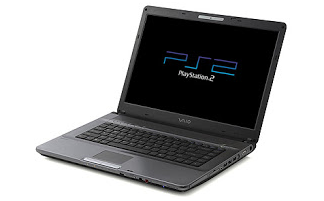
What is Emulator and Various Emulator

Computer game emulator allows to work in accordance with the emulsified system hardware. But the emulator is useless if not supported by the latest title. Games of this game is called ROM or Disk Image is a copy of the game results in a game cartridge or diskette format the system in question.

By using emulator we can play our favorite classic games like Mario Bross first, Contra, and Sonic the Hedgehog on our computers. Actually the concept Emulator is a process to mimic the internal design of a system. Today was a lot Emulator emulators are spread on the internet from emulator game, until the emulator Java Applications.

Various Emulator

Emulators Operating Systems


Emulators-Operating-Systems.jpg

This type of emulator can run an operating system on top of another operating system or call the Guest OS and Host OS. An example for this type of emulator that Sun Virtualbox, VMware, Xen, QEMU, and others.

Emulator Game Console

Emulator-Game-Console.jpg

Emulator can play a game of this type that is specifically made for the console and run certain games on the PC. The types of emulators is following types imitated gaming console or in other words the types of emulators are very specific. Examples of this game console emulator is ZSNES to run the Super Nintendo Entertainment System games, PSX-Fin to run games Sony Playstation One, and others.

Cell Phone Emulator

Cell-Phone-Emulator.jpg

Emulator of this type typically used in the manufacture of mobile applications for the melaku-debugging. Just like a real cell phone, this emulator has the kind of brand that will be targeted platforms for mobile applications, such as Nokia, Sony Ericsson, and others. Of course, apart from the default emulator from the phone app maker tool. There are many tools that can be used for the manufacture of mobile phone applications, namely Sun Java Micro Edition (formerly known as the Sun Java Wireless Toolkit) for Java-based phones, Qt for Nokia phones, and others.

Emulator Program Application

Emulator-Program-Application.png

This type of emulator can run application programs for a particular operating system on other operating systems. For example, when running the application program that was originally intended specifically for the Windows operating system on the operating system GNU / Linux. Famous example of this type of emulator is Wine, CrossOver and Cedega.

Graphics Card Emulator

Graphics-Card-Emulator.jpg

This type of emulator can emulate the graphics card on the PC. This application is very useful to play the games medium level graphics. An example for this type of emulator that 3D Analyzer.

Apart from the above five types of emulators, it is possible there are many types of emulators are circulating in the world. Emulator-emulator but not created simply because of the kinds of reasons. These reasons, among others:
  • Gamers want to reminisce in running games console or the old school where the operating system is no longer manufactured today.
  • Running software that is made only for certain platforms.
  • Checking programs created by the different platforms to run on other platforms.
If you ever wondered What is Emulator and Various Emulator? Perhaps the above article can be quite a bit to answer.
Article Writing Tips of IT (Information Technology) Good, Qualified, Communicative
Some of the readers may already have a qualified IT skills than others. But if spilled into written form was very difficult, and even feels more difficult than calculus problem solving. As if it was a dead end; how to make the opening line, what to write, how to make a closing sentence, etc.. Plus indecision when the article has been made but not being loaded with a variety of reasons.

It looks like a row of questions that I mentioned above are some of the questions on the mind of the reader who wants to write an article IT but still confronted with obstacles. In this article I try to share some simple tips in making an IT article, of course, based on the experience of writing I've done since I was in college today.

Article Writing Tips of IT (Information Technology)

How To Start Writing?
  1. Starting from the idea
  2. Article Writing Tips of IT (Information Technology) Good, Qualified, Communicative
    Beginning an activity of writing is the idea, that is what we will write. This idea can come from anywhere, anytime and anywhere. One example of my experience was when one day I received an email invite to join a mailing list in Coollist. From there I got the idea to make a post about ways to create a mailing list in Coollist, where most people are new to the mailing list at Yahoogroups. It could be the idea of ​​writing. Finally, the text I created and can be loaded in one of the computer magazines. Another example when the Sobig worm attacks, then this could be the idea of ​​writing about how the Sobig worm, which attacked and what other things that need to be known to the reader. It should be noted, if you want to create an IT article, look for interesting ideas and a lot of people need to know. For example, the idea of ​​writing "The Changing Desktop Wallpaper". It is the idea of ​​writing that is less attractive, because most people already know. But if the idea is "Changing Wallpaper in Desktop via the Registry", then become an interesting idea and probably most people do not know. With the development of information technology, IT problems presumably writing ideas are endless. On the other hand you have to continue to observe the development of IT to encompass new ideas are fresh and the needs of society.
  3. "Topography"
  4. Article Writing Tips of IT (Information Technology) Good, Qualified, Communicative
    To make an article you should also do a "topography". This is important if you want to send the text to the media. You need to know the media. Since each medium has a delivery style, writing style, depth discussion of different segments adapted to readers. The obvious example of this kind; You make writing a scientific IT entitled "Computer System Architecture" journal writing style and is filled with scientific terms. This kind of writing is certainly less fit when you send it to the general mass media, because the readers are not researchers or scientists. And vice versa. Each medium has its own unique segment of readers. With the "topography" of this you can know the ins and outs of the media is concerned. This will certainly increase the odds of your writing to be published in the media. To do a "topography" is the minimum you should frequently read relevant media on a regular basis. Not necessarily have to buy, you can make friends with stall keepers can read the newspaper so the media free of charge :).
  5. Framing Posts
  6. Article Writing Tips of IT (Information Technology) Good, Qualified, Communicative
    Next is to make the outline. Write down the things you want to convey to the reader. Adjust the depth of the material with the intended media. For example, in an article entitled "Viruses, Worms and Trojan", you need to explain: What is a virus, worm and trojan Why be called viruses, worms and trojans Why is it feared? What's so dangerous? Examples of viruses, worms and trojans How to protect your computer from viruses, worms and trojans Make an outline of the things you will write. Estimate also the length of your posts later on.
  7. Looking for Reference Materials
  8. Article Writing Tips of IT (Information Technology) Good, Qualified, Communicative
    Many reference sources for materials for your input in making paper. Could from books, magazines, tabloids, or the paper that you have for this collection. A writer should ideally have a personal library. It will help you later. Additionally you need to get used to visiting your local library. Other reference source is the Internet. The latter is very useful for you to obtain the most current information at low cost. The problem is the Internet is a "forest" of information. To find information about an issue like looking for a needle in the hay. For the use of search engines. It will be helpful in finding information. In addition, you do have to be diligent to access the internet to find places resources.
  9. Creating Posts
  10. Article Writing Tips of IT (Information Technology) Good, Qualified, Communicative
    "From where to start?", Maybe this is the first question on a new terbesit started to write. At the time of the first school, we are taught to start writing from the title, then to the opening or introductory sentence, continue to browse the problem and came to the conclusion that the cover. Everything chronologically. This method is not wrong. But I have to make its own way of writing. Start from anywhere that you like and that you think is easy. Can the closing sentence first, first can of contents, or from the title. Such as you have a good closing sentence and memorable, you can write first. Or if you have a "buzzword" good when inserted in the body of your manuscript, you can start from here. Make the title did not necessarily have to be done the first time. The title could you make the last time after the writing is finished. It all depends on your taste and spaciousness of you. This method is certainly easier and does not burden you. After writing goes wrong, you get in on the final stages of completion. At this stage you are trying to read your writing again to check. If you come across things that are wrong or less you can fix. At this stage you can do a "smoothing language" so that your writing be interesting to read.
  11. Starting from the Short Posts
  12. Feel heavy when you are not used to writing but to be forced to make a long post. Do not burden yourself, start easy for you. Make it brief writings about the specific problem. For example, about tricks or how to use a software. Posts about tricks usually only form the steps to do a thing. Examples are "Changing Wallpaper through the registry", or "Creating Files split with Winzip". If you already know how, you can write it down. Not much different from writing about tricks, writing about how to use the program was almost the same. It contained only a step-by-step use of the program coupled with brief information about the program. For example, "HMN Web Gallery Creator - Create Web Gallery In Instant" which was published in one of the computer magazines. With brief writings which you can use to practice your writing skills. Gradually you can write the articles that need large-scale two or three different editions are loaded.
  13. Write not Know Retirement
  14. Writing is a fun activity. Writing can be a profession that does not know the word retirement. Over time your professionalism increases. With writing you educate a lot of people from the writing alone. An Internet expert Indonesia is now also active in writing once said that writing was more devastating impact of conveying knowledge orally. In addition, if your writing is loaded of course there will be fees that can add to your pocket money. So, why not write from now?
How to Setting Computer Back to Factory Setting?
Here are some reasons to restore your computer back to factory settings: if you want to sell the computer to someone, download the software right the wrong, or removing memory. These steps will help you to get back to factory settings without any problems.

Difficulty: Easy
instructions

How to Setting Computer Back to Factory Setting?

Things You'll Need:
  1. CD factory settings 
  2. How to Use CD Restore Factory Settings 
  3. Be sure to transfer all the files that you want to save to a USB memory stick or burn to CD. 
  4. Insert the Restore Factory Settings into the CD drive. This CD is packed with your computer. 
  5. Confirm you want to restore the factory settings. The computer will begin to restore all settings. Do not interfere with your computer, as this process may take several hours. . 
  6. Reboot the computer to complete the process. 

How to Use Computer Rebooting the Start-Up

  1. Turn on your computer. Soon there will be a black screen. You can restore the factory settings without CD also. It will reset your BIOS.
  2. Press F1 when the black screen appears, you will enter the setup configuration mode. You will be presented with a menu. 
  3. Select Restore Factory. Your computer will do all the work for you. Like the CD, this process can take several hours. 

Warning

This process will erase everything but the operating system and factory-download the software.
List 5 Best Computer Company and the Largest in the World
Some of this year's PC business which consists of a laptop or desktop computer reportedly not as sweet as the first. Currently many consumers are tempted to use tablets or smartphones instead of buying a new computer device. IDC research results recorded a decrease to 14% in the first quarter. Several major computer vendors finally experiencing a significant drop in sales. However, some companies are still able to sell quite a lot of computers, especially large companies that are above. Here's a list of the name of the largest computer company in the world from the bottom to the top which is issued by IDC:


List 5 Best Computer Company and the Largest in the World


List 5 Best Computer Company and the Largest in the World


Asus

Asus ranks 5 of the list of names in the world's largest and best computer company. From the existing data capable Asus shipped 4.4 million units of computers in the first quarter of 2013 with 5.7% market share. The Taiwanese company sales decreased 19.2% compared to 2012 last year. Asus is now selling laptops and computer-based Windows 8 Not only that, Asus has also released a Windows tablet PCs as well as Android. The company also recently released Asus MemoPad, an Android tablet PC is priced. Currently Asus is also trying to make a breakthrough on the Android device and called PadFone. PadFone is a smartphone that can be incorporated with the PC.

Acer

Acer only able to ship 6.2 million units of laptops and computers in the first quarter of 2013 and reach a market share of only 8.1%. Companies that are in a position to fourth in the list of name-largest PC company in the world is suffering from a significant percentage decrease in the rate of 31.1%. And similar to that done by the other PC vendors, the company is trying to anticipate consumer transition to a tablet or smartphone. The company created a line of android tablet, named Iconia tablets and also Windows. Acer company is also trying to jump into the smartphone industry. Although their work is not very successful, Acer smartphone brands continue to release new models consistently.

Dell

The company is able to make himself a great third place in the list of names in the world's largest and best PC company. This vendor had shipped 9 million units in the first quarter of a computer in 2013 with market share of 11.8%. The company experienced a drop in sales of 10.9% compared to the previous year in 2012 PC company founded by Michael Dell was not as good as it could be said once again. The company also try your luck in the world of smartphones, but the same fate as fellow underneath, Acer. The company also does not reap a fortune as expected. Some time ago the company reportedly will not sell shares again the stock exchange floor. The company will be managed entirely by Michael Dell himself.

Lenovo

Ranks second on the list of largest and best computer company name, making it still remains exis vendor in the PC industry. Lenovo recorded able to do as much as 11.7 million shipments of computer items successfully targeting their products and market share up to 15.3%. Lenovo is the only PC manufacturer shipments devices does not degrade like other peers. Company from China is indeed on the rise, while other PC companies are experiencing the unpleasant. In the smartphone industry, the company also began to flap its wings. Especially in his home country, China. In the country's bamboo curtain Lenovo gain market share very significant.

Hewlett Packard

The company tops the list of names released by IDC company. The company recorded can ship as many as 12 million units of computers in the first quarter of 2013, which stood at 15.7% market share. This data is dropped as much as 23.7% in 2012 in one period. The computer maker has long been become the largest computer company in the world. Triumph of the company is also supported by the success of Compaq brands that also belong to this company. However, HP have to worry with the intense pressure of aggressive Chinese vendors.
HP Slate 21 Pro - Latest Desktop Computers with System Android Jelly Bean
Android system is likely to continue to grow in the 2014's. After the outbreak in smartphones, now turn to the desktop computer infected this green robot operating system. At CES 2014, manufacturers do not miss Toshiba computer product showcase its latest all-in-one, HP Slate 21 Pro, which interestingly equipped with the Android operating system. Latest android desktop computer is also equipped with a kitchen runway best for office activities to learn. Vendors expect this new device gives an interesting experience for you that is saturated with the existing business.


HP Slate 21 Pro - Latest Desktop Computers with System Android Jelly Bean


HP Slate 21 Pro - Latest Desktop Computers with System Android Jelly Bean 

Design

Computer All in One HP Slate 21 Pro has a minimalist design and sturdy. As an all-in-one PC, all components of the computer in this case the CPU is located on the back of the monitor. This device comes with a size of 495x493x166 mm with a fairly heavy weight 10 kg.

HP claims the latest computer itself is quite sturdy and resilient as a new desktop computer. Part monitor designed kick stand is quite simple and not too rigid so as to be set to provide a comfortable viewing angle. You can even make this device like a tablet.

Display

Minimalist computer using the HP Slate 21 pro monitor LCD screen 21.5-inch IPS panel with a resolution of 1920 x 1080 pixels Full HD. The screen is equipped with technology touchsreen. Screen size is wide enough detail display images and video with HD quality. You even get three navigation buttons like that contained in the tablet or smartphone.

Audio

For the audio problem, HP pinning two speakers and subwoffer. To support this sound device, also pinned Envy Audio technology and Beats Audio that sounds more clear and jarring.

Ports and Webcam

to support the functions of the computer, latest desktop computers made ​​by HP widescreen is equipped with a 2 megapixel webcam Full HD 1080 pixels. In the meantime, there are several ports that are placed also on the side and back of the monitor for easy connection of this device to another device. There are 4 USB 2.0 ports, HDMI input, VGA in / out, audio ports, power port, until the internal TV tuner optional. There are also several audio ports as speaker microphone jack and a Micro SD slot.

Performance

As a new desktop computer, of course HP Slate 21 Pro has a specification that is not unusual for a business computer. However, you can not underestimate the performance of this device. This minimalist computer diotaki NVIDIA Tegra 4 2.5 Ghz speed. Additional 2 GB of RAM which can be upgraded to 8 GB also further maximize device performance All in One PC's screen width. This configuration brings you highly qualified activities such as kitchen runway impressed despite a tablet.

Graphics Performance

Minimalist computer made ​​by HP has qualified dami NVIDIA graphics processor with 1GB DDR3 VRAM. It is expected that the combined processor and graphics processor from Nvidia, this device does not lag when playing a game with high graphics level.

Software

The latest HP desktop computer has been equipped with the operating system Androd 4.3 Jelly Bean. With this operating system, a wide-screen features require a touchscreen in navigation. Nevertheless, this computer can be operated with a mouse and a wireless keyboard.

Configuration and Other Features

If you want to add a mouse and keyboard devices, HP has been providing wireless technology or a USB slot which can be used for a wireless keyboard and mouse. You can also tether the optional external DVD Super Multi / Blu-ray Writer. To save the data - the data, HP internal storage memory capacity is only 8 GB and 128GB SSD.

Price

HP has introduced the All in One PC widescreen, the HP Slate at CES 2014 pro 21 you can buy them online in the range of $ 400-500 comparable with the specifications that you want.

Conclusion

HP did not seem to want to pass up the middle of the open gap in the marketplace widescreen desktop computer gadgets. The release of the latest desktop computer, the HP Slate 21 pro provides a new color in the computer world. Equipped with Android 4.3 system, this device is more like a giant tablet mmang than an office computer. Nevertheless, some additional helpful applications pre-loaded, such as Kingsoft Office Suite, Citrix XenMobile, vernote, Skype, and HP Classroom Manager, maximize the device.
How to Increase the File Transfer Speed to and from an External Disk
How to Increase the File Transfer Speed to and from an External Disk - Copying data from and to an external hard disk or flash disk is a routine activity that we often do in our daily activities, especially for students and workers. However, this routine work can be very annoying when the process takes no moment.

The reason is because the speed of the transfer and the external disk does not conform to the standards so as to send the data to the small size even you take a few minutes.

There are some Tips To Increase the File Transfer Speed to and from an External Disk that can be tried, not complicated but can help resolve your problem.

By default the external disk is set to Quick Removal mode that allows users to remove the device, but it slows down the performance. Thus, these settings need to be changed.

How to Increase the File Transfer Speed to and from an External Disk


1. The trick, make sure the flash drive or an external drive connected to the computer and then click the start menu and find the Device Manager.


2. In the next window find the USB drive and double click on the icon.


3. In the next window, click the Policies tab and select Better Performances and click the OK button.


That was one way to increase the file transfer speed to and from an external disk, but if you decide to use this method please always use the appropriate removal procedures and absolutely perfect or you will lose the data on the disk.

Read previous topic : How to Solve High CPU Usage Due To Windows Bugs
How to Know the Mac Address in Windows OS
How to Know the Mac Address in Windows OS - Network devices on a computer or laptop generally has a unique address to identify a computer, this address is usually called the MAC Address. Therefore, each computer has a different mac address.

MAC (Media Access Control) address is a unique address that identifies a PC / Laptop, router / node on a computer network. MAC Address formed on 12 digit hexadecimal number. MAC Address also can be called Physical Address, Local Administration MAC Network, Ethernet Address. Each network has a unique MAC address or an address that is used for the identity of a network (NIC / Network Interface Card) in an OSI layer called the Media Access Control sub-layer.

Many people mistakenly perceive the MAC address as the name of an operating system made ​​by Apple (Macintosh). Here is the MAC address stands for Media Access Control, in Windows XP known as Physical Address.

How to Know the Mac Address in Windows OS


1. Click on the Start menu in the bottom left corner of the taskbar.


2. Type cmd in the box as in the picture, then press the Enter key on the keyboard.


3. Type ipconfig/all at the command prompt, and then press the Enter key on the keyboard. This will bring up the information as shown below.


Well, Physical Address (MAC Address) we get! If we look at the picture above, then we will get 2 pieces Physical Address (MAC Address) that exist on our computer. Now, Where Physical Address (MAC address) is correct?

As I explained earlier in this article, Physical Address (MAC Address) is the identity of a network card. For this case, we can be sure that this computer has a network card that is 2 pieces, Ethernet LAN and Wireless LAN Card.

Read previous topic : How to Know the Default IP Address Of Modem or Router
How to Know the Default IP Address Of Modem or Router
How to Know the Default IP Address Of Modem or Router - Why do you need to know the IP address of your router? You may need to access your router to configure the settings when you create a home network. In fact you really have to do this if you create and set up your own home network. You also may need to find the IP address of your router if you are having network problems.

Each brand has a different modem different Ip address, which will be given when you buy by the provider to the manual or you can search the internet. By typing your router brand and type on the search engine. If you are not familiar with the term network router then you may need to re-learn and hone your skills before reading this article.

Actually this is the basic theory is to know when you want to perform further configuration on the modem or router. Share this article every network technician is arguably less useful, but I just want to share to newbie (beginner) are still in the stage of understanding and learning about the network.

How to Know the Default IP Address Of Modem or Router


For Windows XP users

Follow the instructions below:
1. Click the Start menu and run (select) Run command. Type cmd, and then click OK. as you can see in the picture below.


2. After that, type ipconfig, and then press the ENTER key on the keyboard. And the result will look like the image below. Default Gateway IP address shown in the picture is the default ip address of the modem/router.


For Windows 7 users

Follow the instructions below:
1. Click the Start menu. Type cmd in the Search programs and files, and then click OK. as you can see in the picture below.


With many brands (brand) modem or router on the market especially with a brand new yet familiar. When you as a beginner and want to try to configure modem / router, of course, you have to know the default ip address to be able to log in and log in to the web interface of the device. Here's the link (link) which contains information about the default IP address, username and password of various brands (AZ) and the type of modem or router, please go to here.

Why You Need to Know Default IP Address Of Modem or Router?


There are several factors that cause people to need to know the information, such as:

  1. Want to learn setting up the modem / router with different brand newly purchased
  2. The device is a modem/router reset because there are technical problems
  3. Want to change the SSID name and password for a wifi, hotspot
  4. Adds advanced settings to the modem / router, such as: mac address filter, ddns, virtual servers, URL blocking, port forwarding, etc..

Read previous topic : How to Know the IP Address in Windows 8
What Is Personal Computer (PC) Meaning?
What Is Personal Computer (PC) Meaning? - Personal Computer (PC) is a tool that is used to process the data according to procedures that have been formulated. Computer word originally used to describe people whose jobs do arithmetic calculations, with or without the tools, but the meaning of this word is then transferred to the machine itself. Origins, processing information almost exclusively related to arithmetical problems, but modern computers are used for many tasks unrelated to mathematics.

In that sense there are tools such as slide rules, mechanical calculators types ranging from abacus and so on, until all contemporary electronic computers. The term better suited for a broad sense as "computer" is "that process information" or "information processing systems." Over the years there have been several different meanings in the word "computer", and several different words are now referred to as computer.

Computer vocabulary, once commonly used to define people who perform arithmetic calculations, with or without auxiliary engine. According to Barnhart Concise Dictionary of Etymology, the word is used in English in 1646 as the word for "people who count" and then before 1897 is also used as a "mechanical calculators". During World War II, the word refers to the workers of the United States and British women who work to calculate artillery war path with the machine count.

What Is Personal Computer (PC) Meaning?


Charles Babbage designed one of the first calculating machine called the analytical engine. In addition, a variety of simple mechanical devices such as slide rule also has to be said as a computer.

Personal computers are used to size large enough to operate a program, now with the ability to operate a small form diverse program. Electronic equipment (hardware) and program (software) have made a computer into a useful object.

A computer that only has only electronic equipment or software alone will not work. With no two computers can then serve as a useful tool.

To realize the concept of the computer as a data processor for generating an information, it is necessary that the elements of computer systems consisting of hardware, software and brain ware. The third element of the computer system should be interconnected and form a unity. Hardware will not work if no software, and vice versa. And both are not useful in the absence of human (brain ware) that operate and control it.
  1. Hardware: equipment that is physically visible and can be touched.
  2. Software: programs that contain instructions / commands to perform data processing.
  3. Brainware: people who operate and control the computer system.
Recent literature on classification of computer. Personal Computer perform classification based computer three thing: the data are processed, use, capacity / size, and generation.

Personal Computer Based Data Processed
  1. Analog Computer
  2. Digital Computer
  3. Hybrid Computer
Personal Computer Based on consumer
  1. For Special Purpose Computers (Special Purpose Computer)
  2. For General Purpose Computer (General Purpose Computer)
Read previous topic : What Is Computer Networking Meaning And The Advantages
What Is Computer Networking Meaning And The Advantages
What Is Computer Networking Meaning And The Advantages - The computer network is an operating system consisting of a number of computers and other network devices that work together to achieve a common goal or a network consisting of the points (nodes) are connected to each other, with or without wires. Each of these nodes serve as workstations.

One of the nodes as services or media server, which regulates certain functions of other nodes. Basically it's own computer network technology is a combination of computer technology and communication technology.

What Is Computer Networking Meaning And The Advantages


The computer network is a system that consists of computers and other network devices that work together to achieve a common goal. The purpose of the network is the computer:

Sharing of resources: for example, shared use of printers, CPU, memory, hard drive
Communication: eg electronic mail, instant messaging, chat
Access to information: for example web browsing

In order to achieve the same purpose, every piece of computer network request and provide the service (service). The party requesting the service is called a client (client) that provides services and called the waiter (server). This architecture is called client-server systems, and is used in almost all computer network applications.


Classification of Computer Networks based on the scale:
1. Local Area Network (LAN)

Local Area Network or LAN, is a type of Computer Networks to include local area. By using a variety of network devices is quite simple and popular, such as using UTP cable (Unshielded Twisted-Pair), Hubs, Switches, Routers, and so forth. An example of such a LAN network computers interconnected in school, in the company, cafe, or between neighboring houses that still covers the LAN area.

What Is Computer Networking Meaning And The Advantages


The advantage of using such type of Computer Network LAN more efficient in operating expenses, more efficient in the use of cable, data transfer between nodes and computers seem to be more quickly because it covers a narrow area or local, and does not require telecommunications operators to create a LAN network.

The disadvantage of the use of type LAN network is a network area coverage is narrower so as to communicate outside the network becomes more difficult and the area coverage data transfer is not so wide.

2. Metropolitan Area Network (MAN)

Metropolitan Area Network or MAN, is a type of Computer Networks broader and more sophisticated than Type Computer Network LAN. Called a Metropolitan Area Network for Computer Network MAN type is commonly used to connect a computer network from a city to another. To be able to create a network MAN, is usually necessary to telecommunications operators to interconnect computer networks. Examples such as office networks between cities or regions as well as modern shopping malls networks interconnected between cities.


The advantage of this type of MAN Computer Network include a wider network area coverage so as to communicate more efficiently, simplify the business case, and also in the network security better.

Disadvantages of Types of Computer Networks MAN as more use of operational costs, can be targeted by the operation of the Cracker for personal benefit, and MAN networks needed to improve quite a long time.

3. Wide Area Network (WAN)

Wide Area Network or WAN, is a type of Computer Networks broader and more sophisticated than the type of Computer Network LAN and MAN. WAN networking technology used to connect a network to another state or from one continent to another. WAN network can consist of various type of Computer Network LAN and WAN because of the breadth of the coverage area of Computer Networks WAN type. Networks WAN, typically using fiber optic cables and plant them in the ground or under the sea lanes passing.


Advantages Types of Computer Networks WAN such as a wider network area coverage of Types of Computer Networks LAN and MAN, the exchange of confidential information and become more focused as to communicate from one country to another country requires more security, and also easier to develop and ease in terms of business.

The disadvantage of such type Network WAN operating costs become more necessary, are particularly vulnerable to the dangers of theft of important data, care for WAN networks become more severe.

Classification of Computer Networks by function


Basically any existing computer network that serves as a client and a server. But there is a network that has a dedicated computer as a server and the other as a client. There is also a computer that does not have a specific function as a server only. Because it is based on function then there are two types of computer networks:

Client-server
That is a computer network with a dedicated computer as a server. A service / service can be provided by a computer or more. An example is a domain such as https://www.google.com is served by many web server computer. Or it could be a lot of services provided by a single computer. An example is the company's server is a computer with a multiservice, i.e mail servers, web servers, file servers, database servers and others.

Peer-to-peer
That is a computer network in which each host can be a server and a client simultaneously. For example in file sharing between computers on a Windows Network Neighbourhood Networks have 5 computers (we named A, B, C, D and E) are granted access to its files. At one point A to access the file share of B named computernetworking.xls and also gives access to the file computernetworking.doc C. When accessing files of B then A serves as a client and as a give file access to C then A is functioning as a server. Both functions were carried out by a network such as simultaneously then this is called peer to peer.

Classification of Computer Networks based on network topology


Based on [the network topology], computer networks can be distinguished:
bus topology
star topology
ring topology

The purpose of a computer network:

1. Networks allow more efficient management of resources: for example, many users can share a single printer with high quality, compared to using low quality printers at each desk. In addition, software license network can be cheaper than a separate stand-alone license for the same number of users, and share the use of the CPU, Memory, and hard disk.

2. Networks help maintain reliable information and to keep up-to-date: the centralized data storage system managed allows multiple users to access data from a variety of different locations, and restrict access to the data while it is being processed.

3. Networks help speed up the process of sharing the data (data sharing). Transfer data on the network is always faster than other means of data sharing network instead.

4. Networks allow groups working to communicate more efficiently. Letters and delivery of electronic messages are the substance of most of the network system, in addition to scheduling systems, project monitoring, online conferencing and groupware, which all help teams work more productively.

5. Network helps businesses to serve their clients more effectively. Remote access to centralized data allows employees to serve clients in the field and the clients can directly communicate with the supplier.

6. In order to achieve the same goal, every part of a computer network and provide the service requested. The party requesting the service is called the client and the service is called service (server). This architecture is called client-server systems, and is used in almost all computer network applications.

The Advantages Of Computer Networking


The main advantage of network sharing instantly felt it was, the worldwide Internet, because the Internet itself is essentially a series of computers (thousands and even millions of computers) that are connected to each other. Evolved and developed over time, thus forming a complex network as we feel right now.

Another advantage in terms of the internal network is:

1. Resource Sharing, can use existing resources together. Suppose a user is located 100 km away from the data, do not have difficulty in using these data, as if the data is located nearby. This often means that the computer network act to distance.

2. High reliability, with a network of computers we will get a high reliability by having alternative sources of supply. For example, all the files can be saved or copied to two, three or more computers connected to the network. So that if one machine breaks, then the copy on another machine could be used.

3. Save money, have a small computer price / performance ratio better than the great computer. Large computers such as mainframes have a speed of approximately ten times the speed of a small computer / personal. Will remain, the price of mainframe thousand times more expensive than personal computers. The imbalance of the ratio of price / performance and speed is what makes the system designer to build a system that consists of personal computers.

4. Hardware sharing, For use hardware together. With the network facility and then use a tool called a printer server. it is an expensive color laser printers that can be used once the price is shared by 10 employees. Similarly, scanner, plotter, and other tools.

5. Security and data management, computers in a business environment, the presence of the network allows an administrator to organize the data the most important office. In every department of becoming fragmented and data scattered everywhere. The important data can be managed in a back end server for later replicated or backed up according to company policy. Similarly, an admin will be able to control such important data to be accessed or edited by people who are entitled to it.

6. Improved stability and performance computing, in certain circumstances, a network can be used to improve the overall performance of business applications, by way of assignment in distributed computing to multiple computers on the network.

Network losses


1. Various advantages of networking media have been described at length above, but the loss has not been mentioned at all. Network with various advantages are very helpful at work in a company. But also many disadvantages when not realize it from the beginning. Here are some of the disadvantages of the implementation of the network:

2. Costs are high and then higher again. covering various aspects of network development: the purchase of hardware, software, consulting costs for network planning, then the cost for network construction services itself. This is certainly a high investment for large companies with a need for high network. As for home users is relatively small and the cost can be reduced. But from the beginning of the network also must be designed so that no more bloated overhead costs because the mission to fulfill the need for a computer network.

3. Hardware Management and Administration system: In a business organization that has a system, the administration felt a small thing, at least when compared to the cost of the work and costs incurred in the implementation phase. However, this is the most important stage. Since the error on this point can lead to reconsideration of construction even reset the network. This maintenance management is ongoing and requires an IT professional, who has understood his duty properly. Or at least do not have the training and network training is specific to the needs of his office.

4. Sharing unwanted files: With the good comes the bad, it is always a common thing applies (ambiguous), the ease of sharing files in a network that is intended to be used by certain people, often resulting in the leaking of sharing folders and can be read also by the others are not eligible. This will always happen if they are not regulated by the network administrator.

5. Application viruses and hacking methods: these things are always a frightening specter for everyone, resulting in network down and cessation of work. This problem is a classic because the system is not well planned. This issue will be further described in chapter network security.

Read previous topic : What Is Computer
What Is Computer
What Is Computer - Computer is one thing that can not be separated from the life of modern society. However, any computer that surely? In simple terms, the computer can be understood as an electronic thing that is the result of a merger of the various components of copying work under the coordination and control of the program so that it can function properly to receive and process data.

Initially the computer is a tool that is used to process data in accordance with the procedures that have been formulated. Globally, the computer is a tool that is used as a data processor for generating an information.

The word computer is derived from the Latin Computare, which means counting. In English is called to compute. By definition, the computer interpreted as a set of electronic tools that work together, can receive data (input), process data (process) and provide information (output) as well as under the coordinated control program stored in its memory. So how can we describe the computer as follows:

What Is Computer

The Parts of a Computer


1. Input Device, is a computer hardware devices that function to enter data into the computer's memory, like the keyboard, mouse, joystick, and others.

2. Processor, the main computer is a device that manages all activities of the computer itself. The processor consists of two main parts, namely;
Control Unit (CU), a major component of the processor that controls all the devices installed on the computer, ranging from input devices to output devices.
Arithmetic Logic Unit (ALU), is part of a special processor processing the data arithmetic (addition, subtraction, etc.) as well as data logic (comparison).

3. Memory is a computer data storage media. This memory is divided into two kinds, namely;

a. Read Only Memory (ROM), which is memory that can only be read only, can not be modified and deleted and already filled by the computer manufacturer. The contents of ROM is required when the computer is turned on. Existing orders in the ROM portion will be transferred to the RAM. Command that is in ROM include the command to read from the disk operating system, the command to check all the equipment in the system unit and a command to display a message on the screen. ROM contents will not be lost even if there is no power. But at the present time the ROM has been developed and its kind al;

  • PROM (Programable ROM), the ROM program that we can only be returned with a note of the time change after it can no longer be programmed.
  • RPROM (Re-Programable ROM), an outgrowth of the PROM version where we can make changes repeatedly as desired.
  • EPROM (Erasable Program ROM), a ROM that we can remove and re-program, but a way to eliminate it by using ultraviolet light.
  • EEPROM (Electrically Erasable ROM Program), the latest development of the ROM in which we can modify and delete the ROM program using electrical techniques. This EEPROM is the type most widely used today.


b. Random Access Memory (RAM), from whose name we can interpret that the RAM is memory that can be accessed randomly. RAM is used to store the programs that we though for a time (power on). If we turn off the computer, all data stored in RAM is lost. The purpose of this RAM is speed up processing the data on the computer. For the data we created can not be lost when the computer is turned off, it would require an external storage media, such as diskettes, hard drive, PCMCIA card and others.

4. Output Device, is a computer device that is useful for producing output, whether it is on paper (hard copy), to monitor (soft copy) or sound output. For example, a printer, speakers, plotters, monitors and others.

From the above we can conclude that the principle of the computer work begins entering data from an input device, then the data is processed by the CPU in such a way as we want and the data that have been processed had been stored in computer memory or disk. The stored data can we see the result through the output device.

COMPUTER COMPONENTS

Computer consists of three main components which can not be separated, ie

1. Hardware, is the physical equipment of a computer that we can see and feel. The hardware consists of:
a. Input / Output Devices (I / O Device)
Consists of input and output devices, such as keyboards and printers. (see sub menu peripherals)
b. Storage Device (storage devices)
Is a medium to store data such as floppy disks, hard disks, CD-I, etc..
c. Monitor / Screen
Monitor is a tool to show what we type on the keyboard after being processed by the processor. The monitor is also called the Visual Display Unit (VDU).
d. Unit casing
The casing of the unit is where all the computer equipment, whether it is the motherboard, cards, other peripherals and Central Processing Unit (CPU). The casing of this unit is also called the system unit.
e. Central Processing Unit (CPU)
Central Processing Unit is one of the most important parts of a computer, because the type of processor also determines the type of computer. Whether or not a computer, type of computer, computer prices, determined largely by the type of processor. Increasingly sophisticated computer processor, the ability will get better and usually the price will be more expensive.

2. Software (software), a computer program that allows you to perform a job according to your choice. The program is written in a special language that is understandable by computers.

The software consists of several types, namely;
a. Operating systems, such as DOS, Unix, Novell, OS / 2, Windows, etc..
Is software that works for the entire device is installed on each computer that can communicate with each other. Without the operating system, the computer can not function at all.

b. Utility programs, such as Norton Utility, Scandisk, PC Tools, etc..
Utility program serves to assist or fill shortages / weakness of operating systems, such as PC Tools can perform as DOS format command, but PC Tools is able to provide information and good animation in the process of formatting. Files that have been deleted by DOS can not be restored again but with the auxiliary program this can be done.

c. Application programs, such as GL, MYOB, Payroll, etc..
Is a special program that perform a specific job, such as the salaries in a company. Then this program is only used by the finance department alone can not be used by other departments. Usually the application program created by a computer programmer in accordance with the demand / need somebody / institutions / companies for internal purposes.

d. Package programs, such as MS-Word, MS-Excel, Lotus 125, etc.
Program is structured so that it can be used by many people with different interests. Such as MS-Word, can be used by the finance department to make the memorandum, or the administration to create a sales letter and so forth.

e. Programming languages​​, Pascal, Fortran, Clipper, dBase, etc..
Is software that is specifically used to create a computer program, whether it is the operating system, programs etc package. This programming language is usually divided into three levels, namely;
- Low Level Language, the programming language of the first generation, this type of programming language is very difficult to understand because it uses machine language instructions. Usually only the author understands it.

- Middle Level Language, is a middle-level programming language in which the instructions are approaching the use of everyday language, although it is still difficult to understand for many uses abbreviations such as STO means to save (short STORE) and MOV means to move (short for MOVE) . Are classified into this language is Assembler, Fortran (Formula Translator).

- High Level Language, a high-level language which has the characteristics of easy to understand, because it uses everyday language, such as BASIC, COBOL, dBase etc..

3. Brainware (user), are the personnel directly involved in the use of computers, such as systems analysts, programmers, operators, users, etc.. In large organizations, the problem is usually handled by computerized special section known as the part of IT (Informatics Technology), or often called the IT department, which is headed by an IT Manager.

ENHANCEMENTS (peripheral)


To improve the performance of your computer, then the computer must insert additional devices mounted on the motherboard, especially the part in charge of receiving the additional equipment (expansion slots). Examples of useful peripherals Ethernet card to connect a PC to another PC. Example of one model of the ethernet card as shown.


Many other periferal able to increase the ability of the computer into another machine. For more details see the following table.

How to Run Elevated Command Prompt in Windows
How to Run Elevated Command Prompt in Windows - Some of us never mention the "Elevated Command Prompt" in some tutorials, but we never discuss more in depth what is elevated command prompt and how to run this tool on Windows. Indeed elevated command prompt is not much different from a regular command prompt that you know.

Lies the most striking difference lies in the permissions system. Elevated command prompt run with Administrator access so it can be used for commands that are more important, more in command prompt and thorough while commonly only used by ordinary user whose access is limited by the rights to the computer system.

Well, if you already understand the difference between the two now we will discuss the steps to run an elevated command prompt in windows.

How to Run Elevated Command Prompt in Windows


First way: Run Elevated Command Prompt Via the Start Menu

The first way this can only be done in Windows XP and 7 as in Windows 8 Start Menu it's been removed. First click the Start Menu - All Programs - Accessories - right click on the Command Prompt and click Run as administrator.


Then the other way, click the Start Menu and in the search bar you type cmd and wait until the menu cmd.exe but do not click the menu. Press ctrl and shift keys simultaneously and hold, then press the Enter key. Then it will run the command prompt as an administrator.


Second way: Run Elevated Command Prompt Via the Windows 8 Start Screen

Now that this can only be done for a Windows 8 computer, press Windows + X at the same time then you will see several menus and Command Prompt ( Admin ) is one of them.


At the start screen you click the Windows button and type cmd, Command Prompt menu appears after right-click your mouse and click Run as administrator.


Third way: Run Elevated Command Prompt Via Windows 8 Explorer

Run Windows Explorer and click on the ribbon menu File - Open command prompt - Open a command prompt as administrator.


Now that he's 3 ways opening the elevated Command Prompt feature, all of the above have been adjusted with your operating system and of course you have to understand this because later you will be involved with a lot of features elevated Command Prompt.

Read previous topic : Introduction to the Command Prompt Commands